Digital Marketing
7 min read

We’re the Legal Website Specialists you need to know about

Overview

Not many of you are aware that Accesspoint design and develop websites for law firms. Predominantly, we’re well-known in the legal sector for our Legal IT Solutions, but our services for law firms extend way beyond that and into the world of creativity.

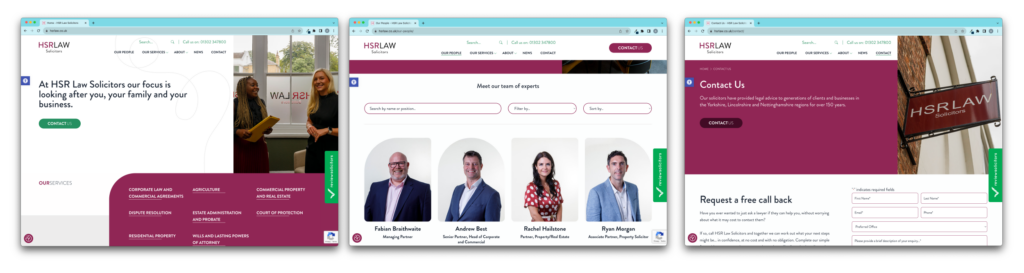
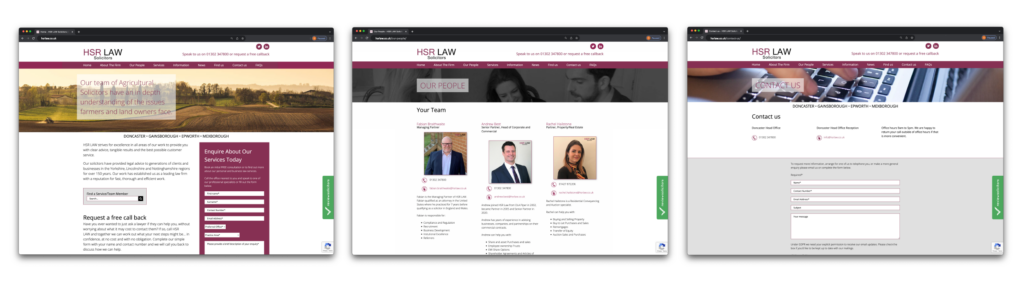
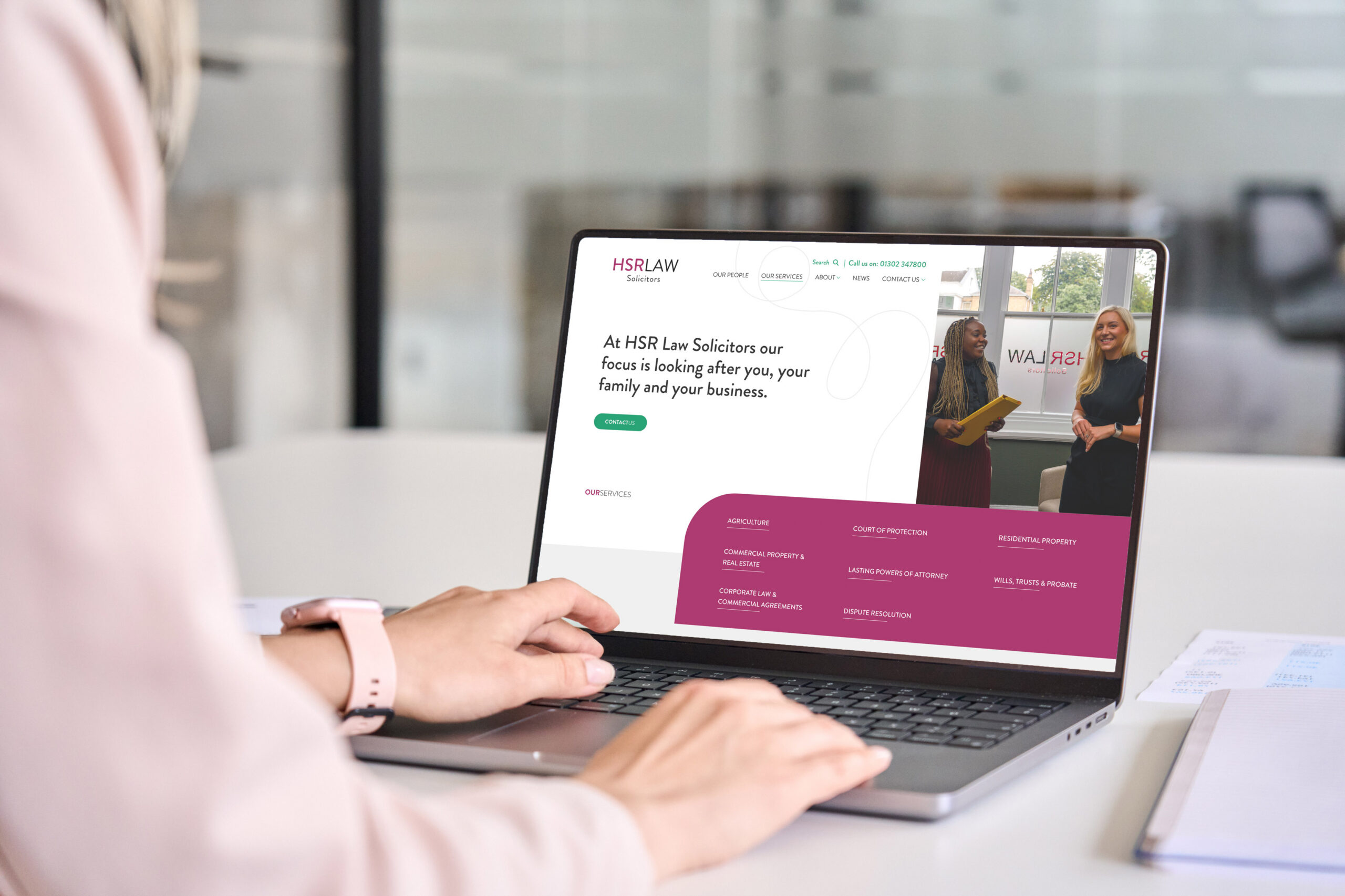
We’ve designed websites for HSR Law Solicitors, Edwards Duthie Shamash Solicitors, TV Edwards Solicitors, A&N Care Solicitors and more that are still in the pipeline. We’ve watched our clients reap the rewards of their new sites because we don’t just focus on creating compelling website designs, we focus on creating a system that alleviates your fee-earners’ time. Just one example being our intelligent automations that dynamically take information from your website enquiry forms, then populate them directly into your Practice & Case Management System (PCMS). With this technology we also digitise conveyancing quotes, Wills questionnaires and much more, all linked directly to your PCMS. Streamlined and accurate or what?

HSR Law Solicitors’ New Website
HSR Law Solicitors’ Old Website

We do however understand that a new website is a big investment. And if you’re sat thinking, “how do I even know if I need a new website?” You may want to start by asking yourself a few of these questions:

  • Does my website look modern and like it’s ready for 2024?
  • Is my website fast loading? Test it using Google’s tool here.
  • Is my website menu easy to navigate? Is it easy to click through and quickly find what I want?
  • People shop with their eyes: is my site appealing? Does it have enough images?
  • Does my home page act as a shop window for my whole site? Does it include shortcuts to the service parent pages and links to my team and recent news?
  • Is the mobile version of my site responsive?
  • Does my website use the tone of voice of lawyers or clients?
  • Is my site optimised for search engines and SEO friendly?

If you find yourself pondering over any of these questions, keep reading.

Why would a new website benefit you?

Increase Client Enquiries

Historically, the legal sector is heavily reliant on gaining clients from referrals, which are great, but can cap your client reach and limit the rate at which your law firm can scale. A high-performing, data-driven website unleashes your digital presence and attracts a wealth of new clients, whilst raising awareness of your legal services to existing clients and capturing the opportunity for cross-selling.

Websites continuously evolve. Gone were the days of having a basic web presence! If you fail to adopt new thinking and on-going improvements, you will see less traffic and a low search engine ranking. Your website must look the part to entice people, but how can people be enticed if they cannot find you through Google? And then it also needs to be good. Your website must look the part and play the part, and we ensure just that.

Maximise Client Retention

The legal sector is like no other. Clients predominantly access your website when looking for help with their legal issues. By default, this means clients may only visit your website a handful of times, so it’s crucial that your website capitalises on these visits as much as possible to maximise revenue.

Even with referred clients, we understand that your website is the first thing a potential client encounters. So we design your website to an unbeatable standard with custom designs that reflect your brand. We’re in the business of creating a memorable platform for your visitors and a pleasant user experience.

Improve Google Search Rankings

Your website has the potential to rank number one for multiple keywords. More than often, we see law firms Googling themselves and believing they are performing well, when they’re simply inputting search terms that clients don’t search (but lawyers do!) which gives a false positive.

Our experts understand there’s a dis-joint between lawyer speak and client speak and using the right tone of voice matters. We develop our websites with this in mind and ensure your website contains keywords that clients are actually searching for, not the keywords you believe they’re searching for.

Why Accesspoint?

Our promise is to create an enticing, SRA Compliant, user-friendly, super-fast, easy to navigate website that generates your firm more leads. Combine this with our digital marketing and SEO services, and you’ve got an efficient online strategy driving as many prospects to your site as possible and converting those prospects into clients.

When it comes to digital marketing and SEO, a lot of firms are left confused: there can be a lack of reporting and communication, which leaves you feeling a bit ‘left in the dark’ with nothing but a data-driven report with no explanation, and some marketing jargon you don’t understand. We hate that. So, we agree on a strategy and work towards that strategy, then we analyse the results from our digital marketing and SEO work; then set up monthly catchups with you to report back in the most human and understanding way possible, exactly what the results are and what we’ve been doing, and what we can then do next together. We remove all the jargon and lay everything out in simple terms so you understand what you’re paying for and what you’re getting back from your investment.

If you want to talk about all things websites, pop us a message today. Even if you’re still unsure, speak to us and we can conduct a free website audit to point out to you what parts of your site could benefit from the Accesspoint touch.

Accesspoint Blog
11 min read

Verify 365: The Pinnacle of AML Compliance for Law Firms

Overview

UK-based Verify 365, has emerged as a strong leader in providing advanced technology solutions for achieving complete AML compliance in law firms. Verify 365 markedly stands out in the realm of digital identity verification and source of funds checks, presenting a level of sophistication that significantly outpaces other technology platforms in the market.

Verify 365, with its proprietary DynamicID® technology, showcases a commendable stride in melding innovation with security, providing a robust, UK-developed identity biometrics solution specifically developed for the legal sector.

The Verify 365 platform exemplifies the pinnacle of advancements in digital client onboarding and identity verification, setting a high benchmark with cutting-edge technologies that seamlessly integrate into legal and financial workflows, thereby redefining the standards of AML compliance and due diligence for solicitors in the digital age.

Verify 365 Review: A Comprehensive AML Compliance Solution

Verify 365 has positioned itself as a next-generation AML compliance platform with a host of features tailored for law firms. It offers a comprehensive suite of global person and business verification solutions, along with no-code workflow building and integrations. Among its standout features are eSignatures and ePayments, which enable seamless and secure transactions and document signings online, all housed within a single platform.

Additionally, Verify 365 provides unique offerings like SecureSend®, MyID® Digital Identity, and a complete legal e-Forms library, which contains over 4000 digital forms. This library is delivered in partnership with FormEvo, to facilitate the various needs of legal firms. The platform also includes the most advanced Open Banking technology in its AML suite, which ensures unwavering compliance and aids in demystifying global AML regulations.

DynamicID® – the cutting-edge ID Biometrics innovation elevating Verify 365 above competitors

The ownership and development of DynamicID® biometrics software by Verify 365 underscores a significant advantage over other AML providers, who license their technology from third parties. DynamicID®, being a UK-developed technology, denotes a high level of control, stability, and security, pivotal for ID verification processes. This in-house development is indicative of a robust and self-reliant system, contrasting with  other providers’ dependency on third-party external technologies. The advanced features of DynamicID®, including machine learning and biometric technology, fortify Verify 365’s platform, making it a more secure, efficient, and reliable choice for identity verification compared to others.

Other platforms lack the integrated eSignatures and ePayments features that Verify 365 offers, which are critical for streamlined operations and enhanced client experiences in today’s digital-first environment.

It is apparent that Verify 365 holds a superior position in this domain, especially because of its features such as eSignatures and ePay, which are not offered by some providers.

What are the Key Features offered by Verify 365?

Below is a summary of the key risk and compliance technologies offered by Verify 365:

ID Verification (KYC)

  • Verify 365 Provides digital ID verification using proprietary DynamicID biometrics, document checks, and database searches, enabling automated and fast customer onboarding.
  • DynamicID technology utilises AI for facial recognition and document authenticity checks and offers a single dashboard for managing verifications.

Address Verification Service (AVS)

  • Verify 365 provides automated global address validation against official data sources such as the Electoral Roll and Credit Reference Agencies, providing real-time address verification and formatted address outputs.
  • Provides a facility for client document upload and OCR recognition of the documents uploaded as proof of address, or proof of ownership (conveyancing transactions).

PEP and Sanctions Screening (PEPS)

  • Verify 365 provides automated PEPs and Sanction checks with data generation in a constant live state, with real-time risk assessments of over 1,800 global watchlists, PEPs, and adverse media.
  • Real-time risk screening – using AI, AML/CFT data is acquired in minutes, not days, with a single alert of all the information needed to make an informed decision, including teams of global data experts that review and edit problematic profiles and high-risk clients.

Source of Funds Checks (SOF)

  • Verify 365 provides fully automated digital checks for verifying a client’s source of funds using the most advanced open banking technology, aiding in compliance with AML regulations.
  • Offers a unique source of funds analytics dashboard for real-time monitoring and reporting and provides a summary of “transactions of concern” for enhanced security.

Company Checks and UBO Verifications (KYB):

  • Verify 365 offers a comprehensive KYB and UBO verification service for purchasing reports on over 500 million companies world-wide based on specific requirements, aiding in informed due diligence.
  • Provides global coverage, comprehensive datasets, real-time screenings, and a cloud-based dashboard for accessing live company data.

Digital ePayments (ePay)

  • Verify 365 provides a secure digital payments solution (ePay) within a single client onboarding workflow, reducing risks associated with traditional payment methods.
  • Offers real-time e-payment transaction monitoring and provides automated reconciliation and reporting features.

Document eSignatures (eSign)

  • Verify 365 provides a platform for electronic signatures (eSign 365), enabling legal documents to be signed quickly on any device.
  • Offers features like mobile-friendly signing, signer identity verification, and integration with legal case management systems.

Advanced Open Banking Technology (Open Banking):

  • Verify 365 enables the use of digital bank statements using Open Banking technology for identifying risks and preventing fraud during client onboarding.
  • Provides real-time analytics of client’s financials, transaction analytics, and instant bank statement risk assessments, promoting an efficient workflow.

Conveyancing Searches

  • Verify 365 provides bespoke search bundles for property searches for conveyancers in the UK, delivered in partnership with IndexPI.
  • Offers residential and commercial property searches, HM Land Registry searches, and local searches, with an easy online ordering system.

Legal Forms Submission

  • Verify 365 provides access to over 4,000 legal forms with a cloud-based platform delivered in partnership with FormEvo for electronic submissions, aiming to reduce paperwork and errors.
  • Provides features like automatic field population, digital submissions, and integrated solutions for managing legal documentation and compliance.

Practice and Case Management Integrations

  • Direct integration with most Practice and Case Management systems (PCMS) for a streamlined approach.
  • Trigger multi-level verification checks directly from your PCMS.
  • Completed verification documents are stored directly into your PCMS, alongside automatically populating the AML module and notifying fee-earners of the checks.

Verify 365 are a software development company with a suite of UK-developed, proprietary technology solutions, utilising the most advanced AI and machine learning technologies, which streamline legal operations significantly.

While other platforms have their merits, the choice between them would depend on the specific needs and priorities of a law firm, especially concerning AML compliance requirements.

Verify 365’s extensive range of KYC and KYB solutions positions it as a more comprehensive platform for AML compliance, catering to a broader spectrum of needs within the legal and financial sectors compared to other solutions. Verify 365 solutions in digital e-payments, conveyancing searches, legal forms, and document e-signatures extend its utility beyond what other platforms are able to provide, making it a more complete AML platform.

What about AI? Verify 365 now offer next-gen AI AML-tech for Law Firms

Last week, Verify 365 unveiled a novel AI-driven AML and ID verification solution, which employs machine learning to assist clients in the legal sector meet regulations necessitating the identity checking, sanctions screening, source of funds checking, and reporting of potential suspicious actions.

The new AML-engine, named “DynamicAI”, has already garnered attention from notable users, including several large, London-based law firms. This new AI-driven anti-money-laundering technology platform “sidesteps” the traditional rules-based programming characteristic of similar products.

It is clear that Verify 365 are aiming to differentiate themselves as the leading provider of anti-money laundering technology solutions by using AI and minimising human intervention in the process of screening for fraud, identity theft and money-laundering risks.

Verify 365’s distinctive approach is its departure from the rules-based programming typically crucial in setting up and overseeing an anti-money-laundering system.

This technology comes in the wake of major U.S. tech companies showcasing their AI prowess, influenced by the success of generative AI apps like ChatGPT and a corporate rush to incorporate such advancements across various sectors.

So how does it work in practice? Traditionally, most law firms are utilising basic technologies to sift through the numerous transactions and matters they manage daily. This procedure usually begins with a set of human determinations, followed by selecting the required checks, allowing law firms to pinpoint and scrutinise clients and fraudulent transactions that may need regulatory attention. By eliminating rules-based directives, Verify 365 are betting on AI’s potential to address this longstanding challenge in the AML domain.

Conclusion

It is evident that Verify 365 offers a robust solution for law firms. The integrated eSignatures and ePayments features of Verify 365, alongside its comprehensive suite of UK-developed verification solutions and open banking integrations, render it a superior platform for AML compliance.

The seamless and secure client journey experiences provided by Verify 365 places it a notch above  the competition, making it the preferable choice for law firms in ensuring AML compliance and delivering exceptional client services.

Why switch to Verify 365:

  1. Verify 365 offers advanced biometric and NFC identity verifications, ensuring that your clients are who they say they are.
  2. Verify 365 conducts thorough ID checks, including government-issued ID and address verification.
  3. AML checks ensure that your clients are not on any financial crime watchlists.
  4. They also perform automated source of funds checks to ensure that the money your clients are using is legitimate.
  5. Verify 365 platform also includes e-payment and e-signature technology, making the client onboarding process fast and efficient.

In the competitive landscape of legal compliance platforms, Verify 365 clearly leads the pack, especially in facilitating a more streamlined, secure, and comprehensive approach towards AML compliance for law firms.


Higgsy's Handy Hints
12 min read

No Pane(s) No Gain – How to configure your Case Manager screens

Overview

​​​How to configure your Case Manager screens​ 

P4W’s Case Manager screen provides a high degree of personal configurability to suit individual users’ preferences.  

Over the years, I have seen some really “interesting” Case screen layouts with a shrunken Case History screen surrounded by over-sized, permanently open, additional Panes. Typically, the users were unaware of how the screen layout could be changed and were usually delighted with the new look after a few clicks of the mouse. 

So, let’s have a look at how you might change your own view of Case Manager. 

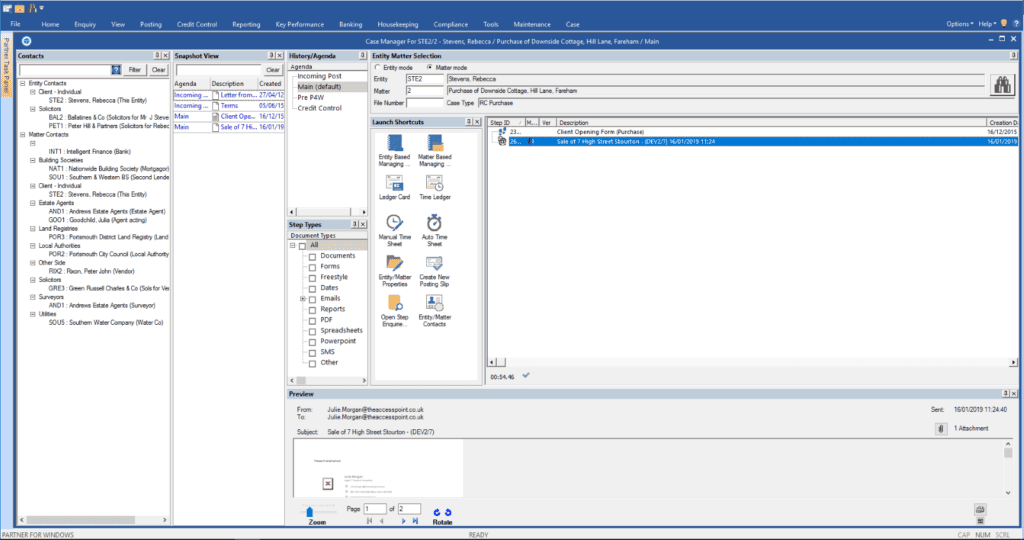
Depending on which Panes you have active, the initial view of the Case screen is presented as a set of multiple windows as below: 

One of the objectives for the Case Manager screen is to provide the user with a view of all the key information about the case without the need to open further screens of information such as Contacts. The above screen shot shows the default view which provides all of the panes available in “open” format. Although it is not particularly apparent on the view above, this even includes the File Viewer pane at the foot of the screen which can be set to provide an auto-preview of any selected document in the central Case pane or on a second screen for those who use one. 

In my own use of P4W, I’ve always found that the default view with open Panes looks cluttered whilst reducing the size of the most important screen: the Case History. Each of the active panes can be repositioned on the screen and or minimised using the pin symbol to provide a tab which can then be clicked on to temporarily reveal the information held in that pane. To move the location of a Case Pane, firstly it needs to be set to be always open via the pin. Drag the pane by pulling the title bar of the pane with the mouse and then; once in position, let go and the pane should then be anchored to its new location. Click on the pin again to minimise the Pane.

When moving the pane, if you want it to be along the vertical edge (left or right) of the screen, make sure that it previews as a vertical outline before letting go of the mouse. If it is horizontal, it will anchor itself to the top of the Case screen.

Once the user has selected a preferred view, this can be saved by accessing the Case toolbar at the top of the screen and selecting Panes\My Layout\Save Layout. This will then become the default view for that user whenever they access Case.

For users working on a single screen, the trick is to get the balance right between the amount of information shown to the user in the various panes versus the amount of screen space left for the core element of the case file; i.e. the chronology of items and actions carried out to date.  

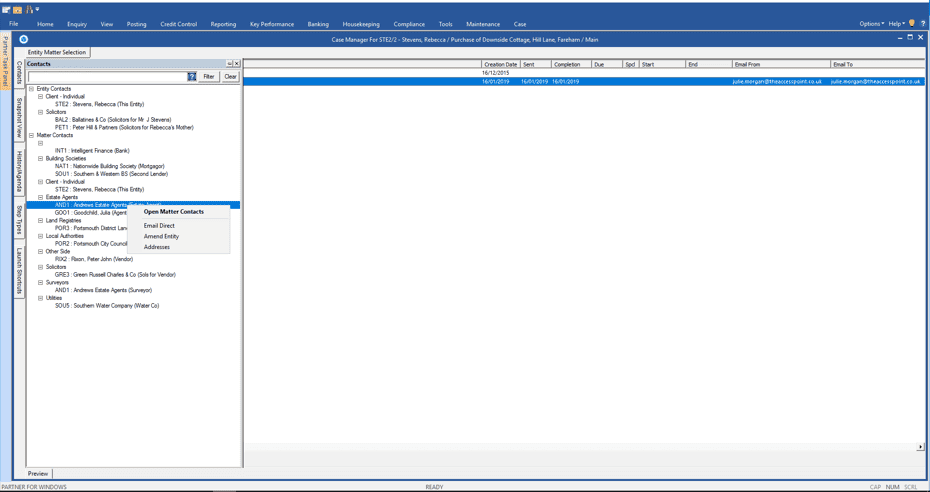
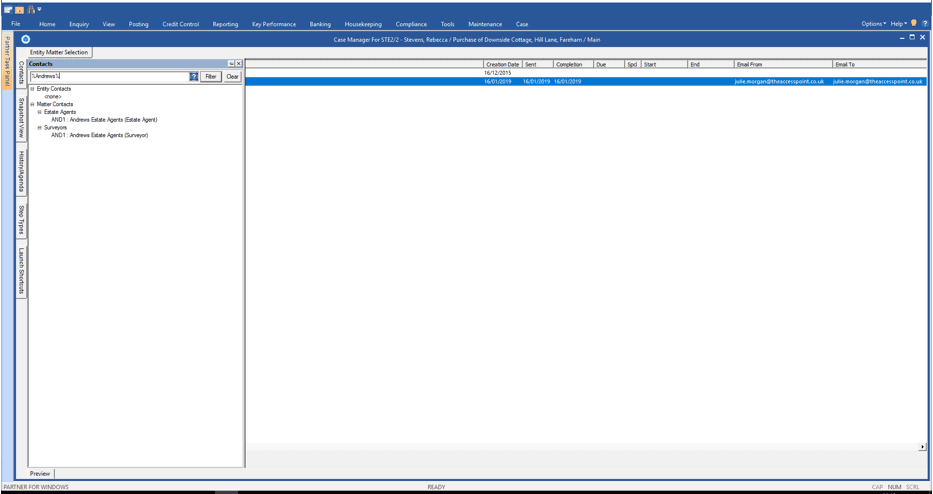
When a pane has been minimised, if the user wishes to view the data in the pane, then they simply hover over it with the mouse or click on the tab as below. Here, we have clicked on the Contacts tab to reveal all of the Entity/Matter contacts associated with the case. By hovering over a contact, a display bubble revealing further details is shown as we can see with the Andrews Estate Agents example.  

Right clicking on a selected contact reveals further options as below: 

The right-click reveals functionality which has always been available on the standard view of contacts and, in fact, that view can be accessed either by selecting the “Open Matter (or Entity) Contacts” option or by double-clicking on any of the contacts displayed in this pane. You can also use a wildcard entry; e.g. %Andrews% or %Estate Agents% in the field at the top of the contacts screen in order to filter a lengthy contact list to find who you are looking for as below: 

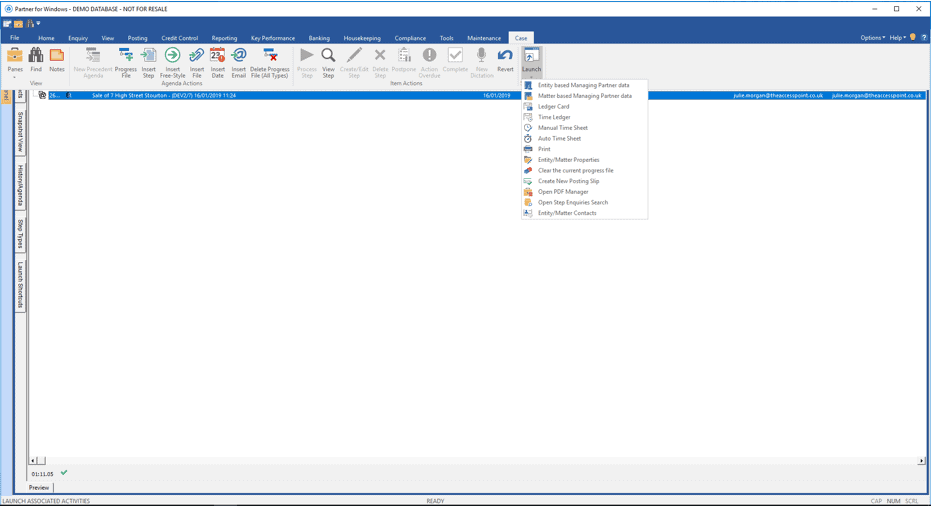
The Case function icons are accessible via the Case toolbar at the top of the screen. In addition, access to related information such as the Financial Ledger is also available via the Case toolbar using the Launch option as below or, as I have, you can access these via a Launch Shortcuts Case Pane.

Any of these can be added to the Quick Access Toolbar at the top of the screen via a right-click option on the highlighted function.

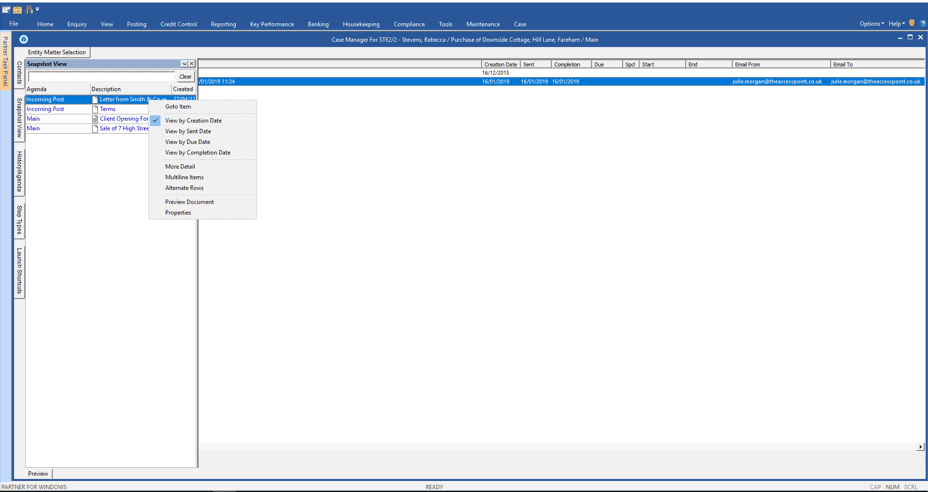
For those of you who use multiple Progress Files (aka Agendas or subfolders), don’t forget to use the invaluable “Snapshot History” pane which provides a searchable, chronological view of all items held in the case file. The Progress File location is listed for each item plus you can go directly to the item or review it using File Viewer via a right-click on a selected item.   

Accessing Case Functions 

Whilst Case functions are accessible from the toolbar, it is worth remembering the useful shortcut keys available to invoke Case functions; which means that the user can work from the main Case pane without having to go to the toolbar each time. These include Alt S to Insert a Step, Alt F to insert a Freestyle Step, Alt T to take a Step, and Alt C to Complete a Step.  

Changing the Case History Screen 

There are a number of options available to customise the main, working screen within Case Manager. 

You can zoom in/zoom out (CTRL +/-) whilst viewing the case screen should you wish to increase or decrease the size of the displayed text. Once your preferred text size has been reached, if you exit the Case screen and open it again, the newly-selected text size should be retained. This should also be the case when you next login to P4W. 

The order of items in the case history can be amended; either by using the Alt and the up or down arrows option to move the highlighted step up/down or holding down the ALT key and using the mouse to drag the item to the desired position.  

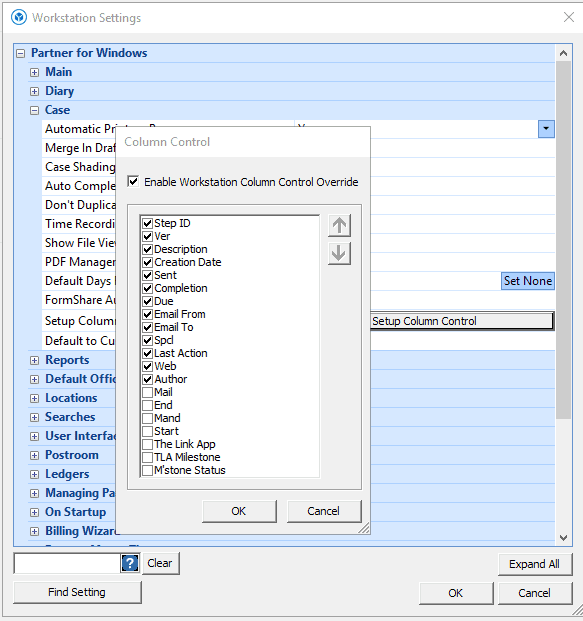
It’s also possible to change the order of the columns visible on the Case History screen as well as remove those which are of no use to you; e.g. “Web” if you don’t use Legal Portal. This is done in Workstation Settings under “Case\Set-up” Column Control as per the screenshot below: 

To reposition a column, highlight the column title on the list and use the up and down arrows to the right of the drop-down list. To remove or reinstate a column, simply untick or tick the box next to that column header. Note the “Enable Workstation Column Control Override” tick box at the top of the list and tick this to ensure that your selections take precedence over the firm-wide settings. Once you’ve made your changes, log out of P4W and then log back in to see the results. Being a Workstation setting, this will only affect your view of the Case History screen. This facility is also available in System Settings for applying across all users. 

You can amend the width of each column by placing the mouse to the right of each column header box and dragging the margin to your preferred width. This enables a much larger width for accommodating the Description field; thus giving you the full detail for each item on first glance and saving further clicks. Once you’ve achieved the desired column widths, simply exit the Case screen and then open it again. Your new format should now be the default. 

Finally, you can drag your Case screen to fit neatly into the top left-hand corner; just to the right of the Task Panel tab and under the Ribbon Bar, and then click on the bottom right-hand corner to drag it out to the bottom right of the screen to appear as the example below. Once you’re happy with the sizing and position, close the Case screen with the “X” at the top right and that will then save your new size and position as your default. Test it by opening another Case file. This applies to any of the major screens in P4W: e.g. Matter Ledger, Time Ledger, Managing Partner (Custom Fields), so if any of these need resizing, just follow the same instructions as with the Case Manager screen. 

By reconfiguring the Case Manager screen to your desired settings, you should find it improves your user experience and increases your efficiency by reducing the need for further mouse clicks to get to the information needed. 

I hope this has been useful in helping you to configure a Case screen that best suits your way of working.

Please do check with your P4W supervisor(s) before making any of the changes to the Case screen layout as outlined above; just to make sure that these are accessible to you and approved for use. For any P4W supervisors reading this, you can establish a practice-wide default Case Panes view for your users which will be the standard for all within the firm unless you allow individual changes.

In case you missed it…

More of a video/demo person? Watch No Pane(s) No Gain – How to configure your Case Manager screens video below!
Accesspoint Blog
6 min read

Unleashing the Potential of Microsoft Power Platform

Overview

The legal profession, like many others, is witnessing a technological revolution.

As law firms strive to enhance their productivity, streamline operations, and make data-driven decisions, they are turning to innovative solutions. Microsoft has become a major player in this space and most law firms centre their technology stack around the Microsoft ecosystem, with the use of Outlook, Office and Teams. 

Firms can now further leverage this functionality by utilising the Microsoft Power Platform: Power Apps, Power Pages, Power Automate, Power BI, Power Virtual Agents, Dataverse and AI Builder.

Has your firm ever wanted to automate tasks, such as connecting two or more pieces of software, create alerts in Teams based on triggers, or completely streamline workflows? 

Would your firm benefit from cost-effective, secure web-applications that seamlessly integrate with other software’s, all whilst instantly accessible from your Teams platform? 

Are you fed up with the lack of reporting or even report overkill? How about the ability to build bespoke reports exactly how you want them, with bespoke filterable results, accessible from the click of a button? 

What if we said you can achieve all the above in a cost-effective manner and without the burden of huge development costs and extensive lead times? 

These powerful tools are available to every firm, but many firms are still not up to speed in adopting them; missing a huge suite of benefits. They’re not only user-friendly tools but also customisable to suit the unique needs of law firms. In this article, we explore how these applications can revolutionise legal practices and empower law firms to stay competitive in the digital age. 
Streamlining Case Management with Microsoft Power Apps 

Microsoft Power Apps is a low-code platform that allows users to create custom web-applications without extensive coding knowledge. Law firms can leverage Power Apps to streamline their case management processes, resulting in increased efficiency and reduced manual work.

Custom Case Intake

With Power Apps, law firms can develop tailored intake forms to gather essential client information securely. These forms can be designed to ensure compliance with relevant regulations and data privacy laws, enhancing client onboarding experiences.

Automated Document Generation

Power Apps can be used to automate document generation, such as contracts, legal agreements, and court forms. This automation saves considerable time and reduces the risk of errors, enabling lawyers to focus on higher-value tasks.
Workflow Automation

The platform allows firms to create automated workflows, ensuring smooth collaboration among team members. These workflows can handle tasks like assignment notifications, document reviews, and deadline tracking.

Increasing Efficiency with Microsoft Power Automate 

Formerly known as Microsoft Flow, Power Automate facilitates workflow automation and integrates with various Microsoft and third-party applications. For law firms, Power Automate can significantly increase efficiency by automating repetitive tasks and simplifying communication.

Email and Document Automation

Legal professionals often spend considerable time drafting emails and attaching documents. Power Automate can automate these tasks based on predefined triggers, reducing manual effort and the risk of mistakes. 

Calendar and Task Management

The tool can synchronise calendars and automate task assignments, ensuring everyone stays on top of their schedules. Automated reminders and notifications help avoid missed deadlines and court appearances.

Data Synchronisation

Power Automate enables seamless data synchronisation between different systems , such as case management software, CRM tools, and billing platforms. This integration ensures data accuracy and consistency across the organisation.

Data Visualisation and Insights with Microsoft Power BI 

Power BI is a powerful business intelligence tool that transforms raw data into visually compelling and actionable insights. For law firms, it can be a game-changer in terms of data-driven decision-making and understanding key performance metrics.


Real-time Analytics

Power BI allows law firms to monitor critical metrics in real-time, such as billable hours, case progress, and revenue trends. With this information readily available, lawyers and management can make data-driven decisions promptly. 

Customised Dashboards

The tool offers customisable dashboards that cater to the unique needs of each department within the firm. Lawyers, partners, and support staff can access relevant data at their fingertips, increasing transparency and collaboration.

Predictive Analytics

Power BI’s advanced analytics capabilities enable law firms to analyse past trends and forecast future outcomes. This assists in predicting case outcomes, identifying potential risks, and making strategic business decisions.

Conclusion 

Microsoft Power Platform provides law firms with a powerful BI toolkit to revolutionise their operations and improve overall efficiency. By streamlining case management, automating tasks, and gaining valuable insights from data visualisation, these tools empower law firms to deliver superior client experiences, optimise resource allocation, and stay ahead of the competition. Embracing these innovative technologies is no longer an option but a necessity for law firms aiming to thrive in the digital age.

If you would like to discuss a specific project, or would like to know more about how these tools could help your law firm, contact us.
Higgsy's Handy Hints
19 min read

The New You: Configuring your P4W Desktop to suit the way you work

Overview

Configuring your P4W Desktop 

Most of us arrange our working environment in such a way as to enable us to be both productive and comfortable. The aesthetics of the working environment are also important. We want to sit at a desk that is welcoming, comfortable, and familiar. 

It’s just as important to ensure that the software we use for most of the working day also conforms to these principles. If it doesn’t, we risk a poor user experience leading to inefficiency and frustration. 

This article seeks to provide suggestions as to how you might configure your P4W Desktop to create the best experience for you.

Start-up

You may find on your instance of P4W that several items are opened automatically upon start-up when you first login.

If you don’t need or use some or any of these, then you will start every P4W session by closing down these functions; which is both frustrating and time-wasting. 

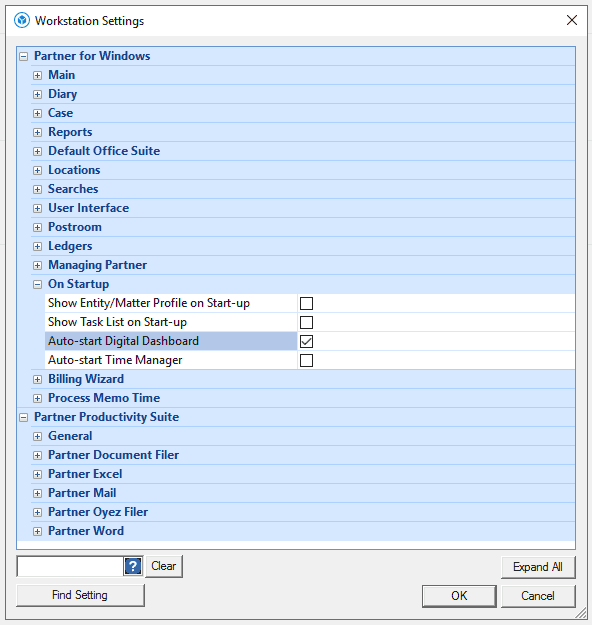
Within Workstation Settings, go to the Start-Up menu to reveal what, if any, items are ticked to automatically fire up on login. As you can see from the screen shot, there are 4 potential options here: 

To add or remove any of these functions from the automatic start-up process, simply tick or untick to suit. Log out of P4W and then, when you next log in, the changes will take effect. 

The Ribbon Bar

Let’s start at the top of the P4W screen with the Ribbon Bar. There are a couple of useful options that determine how it is presented to you: 

  1. Autohide: If, like me, you prefer an uncluttered desktop and a larger working area on screen, then minimising the ribbon bar when not in use is a great way of achieving both objectives. To do this, right-click anywhere on the Ribbon Bar and select “Minimise the Ribbon”.Once you’ve hidden the ribbon bar, to see it, just click on the ribbon bar heading that you want to open and it will come to screen for you to select from. Once the option is selected, it will automatically minimise again. To restore the ribbon bar so that it is always showing, just right-click on it and untick the “Minimise the Ribbon Bar” option.
  2. Hide unused icons: In its default view, the Ribbon Bar shows every available option in P4W; even if you don’t need or have access to some of them. This adds confusing, greyed-out icons to the Ribbon Bar which serve no purpose. To remove these, there is an option in Workstation Settings\User Interface\Show Disabled Ribbon Icons which needs to be unticked as per the screenshot. Log out and log back into P4W and you should be presented with a cleaner Ribbon Bar with the greyed-out icons removed. 

The Quick Access Toolbar 

Like other Windows applications, P4W has a Quick Access Toolbar. As the name suggests, this is designed to provide the user with one-click access to their favourite functions.  

By default, P4W comes with 3 items in the Quick Access Toolbar: 
  1. New Profile. 
  2. Case Manager. 
  3. Find an Entity/Matter (aka Search). 

What a lot of users don’t realise is that you can change these and add as many others as you like.

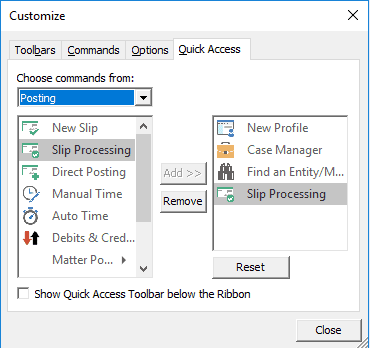
To add new ones, simply go to the option on a P4W menu (either the icon on the ribbon bar or one of the drop-down items on a sub-menu). Highlight the icon or option, right-click, and select “Add to Quick Access Toolbar”. The item will then appear as a mini-icon alongside the existing options. Alternatively, you can click on the drop-down arrow at the right-hand end of the Quick Access Toolbar and select “More Commands” to open the window shown.  

In the above example, I am adding Slip Processing to the Quick Access Toolbar which would be handy for someone based in the Accounts Department tasked with approving posting requests. 

To amend the toolbar, right-click on any of the mini-icons and select “Remove from Quick Access Toolbar”. You can also do this with the default ones if you wish.  

You can also decide on the positioning of the Quick Access Toolbar, by right-clicking on it and selecting to show it above or below the Ribbon Bar. This is perhaps less important if you hide the Ribbon Bar, but it’s there if you want to use it. Note the tick box at the foot of the above screenshot to achieve the same result. 

Once an item has been added to the Quick Access Toolbar, you simply click on it to call up the function. So much quicker than trawling through menus to find it. 

Think about those functions you use regularly and whether they would merit being added to the Quick Access Toolbar. You’d be amazed how much time time one-click access to your regularly used functions can save over the course of a working day.

The Task Panel 

For me, this is one of the best innovations ever added into P4W.

The key objective of the Task Panel is to enable intuitive access into P4W via a number of launch options available in the various sections behind the buttons.

Let’s start with the visibility of the Task Panel.

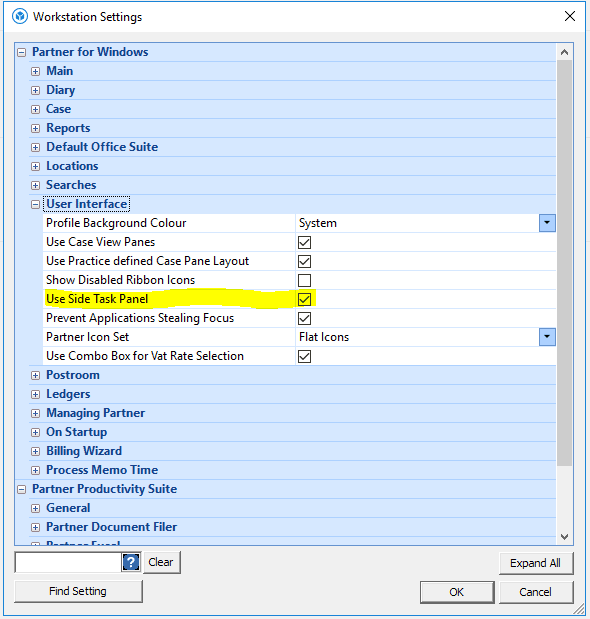
Firstly, you need to ensure that the Task Panel is switched on. You can do this by checking the box in Workstation Settings as shown here: 

Once activated in Workstation Settings, you can choose to switch it off or back on again via the option on the Home Ribbon Bar as shown below: 

Like the Ribbon Bar, you can choose whether the Task Panel is always visible or disappears from screen until needed. You can do this by clicking on the pin icon when the Task Panel is on screen. Once clicked, the Task Panel slides off to the left of the screen. When you need it again, just hover over the “Partner Task Panel” tab at the left-hand side of the screen and it will slide out again. Once you’ve selected the required option, the Task Panel slides off to the left again.

If you accidentally hit the x in the Task Panel, which switches it off, just go the the Task Panel option in the Home ribbon bar and check the “Task Panel” option to reactivate it.

Please note that following initial login, if you have the Task Panel set to be hidden, it can take several seconds for it to appear for the first time. This is normal behaviour and only happens for the first use after logging in.

You can also adjust the width of the Task Panel by simply dragging the right-hand edge of the open panel to the desired width and letting go. Following this, the Task Panel will default to this width. This can be useful to avoid truncating client names and matter descriptions in the Task Panel.

Now let’s look at the different options available behind the Task Panel buttons:

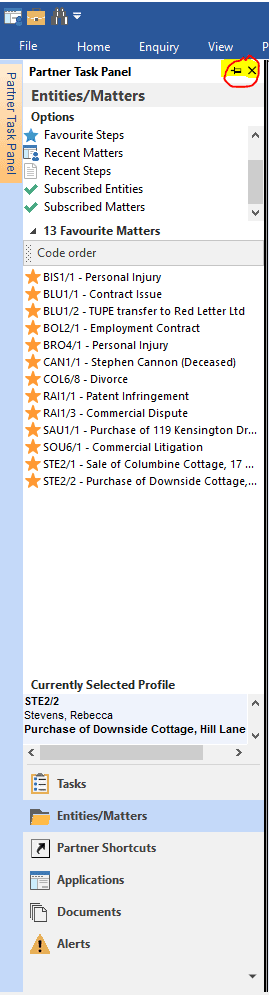
  1. Tasks: All of your outstanding tasks from Case Manager will be shown and can be accessed from here to take the user directly to the reminder in the relevant case. The default view is to show today’s tasks; including any which are overdue and highlighted in red.
  2. Entities/Matters: Probably the most heavily-used function, this enables the user to add their own favourites from the following:
    • Entities: Clients and other parties you regularly access. 
    • Matters: Ditto matters; perhaps those most active at present and or nearing completion.
    • You can choose the order in which your favourite entities and matters are displayed by selecting the “Code Order” button above each list in the Task Panel. 
    • Steps: Documents held in Case Manager. Useful if you are working on a dynamic document which will be updated as negotiations progress. Steps can be ordered by Step ID number and or have a filter applied via the two options at the top of the Favourite Steps list.
    • The matters and steps options also have a “Recent” option; thus listing those matters and steps that the user has recently accessed; regardless of whether they are saved as a favourite.
    • More recently, an option to add Subscribed Entities and Matters into the Entities/Matters section of the Task Panel has been added. This enables a user to add other entities and matters for quick access that are not favourites, but need to be monitored. Useful for team leaders who wish to keep an eye on certain key matters and or clients being managed by their team.
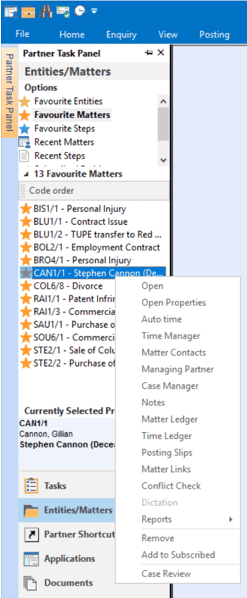
    • A right-click on any of the above will reveal a sub-menu of options available as shown in the screenshot which can be directly accessed for the selected item.
  • To add items as favourites, do the following:
    • Entities & Matters: Click the star icon on the Entity/Matter profile screen for the selected entity/matter or the Entity or Matter Properties screen. You can also favourite an entity or matter from the results of a search by right-clicking on the relevant entry and selecting “Add to Favourites.” 
    • Steps: Right-click on the selected item in Case Manager and choose “Add to favourite Steps”.
    • To remove a favourite, right-click on the entity, matter, or step in the Task Panel and select the “Remove from Favourites” option. (You can’t remove an item from the Recents list for obvious reasons).
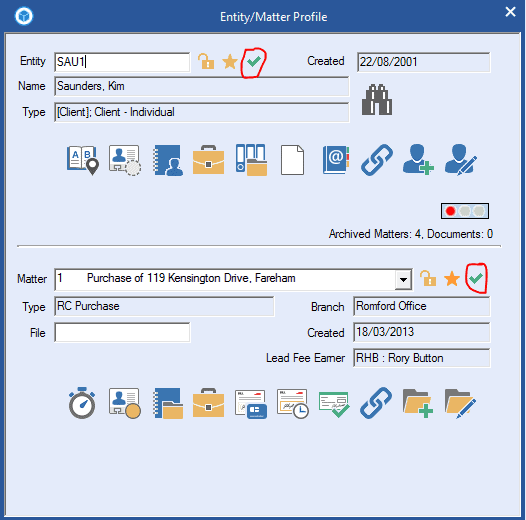
  • To subscribe to an entity or matter, open the profile screen and select the green tick to the right of the entity code or matter description. You can also subscribe to entities and matters in your favourites via the right-click drop down menu shown in the screenshot under the last bullet point in 2 above.
  1. Partner Shortcuts: In here, you will find numerous, one-click shortcuts into P4W such as Create Client and Create Matter. Please note that you can only access functionality that you are authorised to use and the shortcuts provided in this section cannot be amended other than adjusting the size of the icons and whether a double-click is required to activate them.
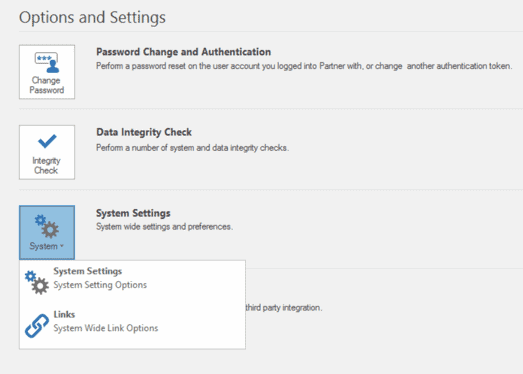
  2. Applications: This is a great function for enabling quick and easy access to other, third party applications, network resources, or web-sites that you use. The applications available can be configured globally by your P4W Administrator in the “System Wide Link Options” as shown. Individual users can then have a tailored, sub-menu of applications made available in the Task Panel via the User Links function within Maintenance\Users\Users, select the user and then “Properties”.
  1. Documents: The documents tab holds several functions as follows: 
    • Checked Out of Case: Where P4W Version Control is in use, this will show the user any documents that they currently have checked out for updating.
    • Post to Review: For firms who use P4W Postroom to allocate scanned items to matters, this will show the Matter Fee Earner any items that have been allocated to their matters. Each item shows the client/matter and is date stamped along with an identifier as to who scanned the item. Right-clicking on an item provides the following options:
      • Case Manager: Takes the user to the item within the Case file.
      • Mark as Read: This removes the item from the Task Panel.
      • View Document: Opens the document for reviewing.
    • Case ReviewTime: This will list all time spent in open Case Manager files in P4W. To activate this function, the “Show Case Panes Timer” box in System Settings\Case\CoreSettings will need to be ticked by your P4W supervisor. Once activated, time will be automatically recorded each time you work in Case Manager. Once captured, the time is held in the Task Panel\Documents area under “Case Review Time” for the user to review and decide whether any of the time captured needs to be added to their time recorded by other means. This acts as a useful prompt; reminding the user that they have been working on files, but may not have recorded any time. To convert the entry into a formal time record, simply right-click on the selected entry and “Add to Timesheet” to complete the process. To remove an entry, right-click and select the option. Items over 30 days old are automatically purged from the system when the period end process is run on P4W.
  2. Alerts: The Alerts tab provides the user with various alerts triggered by applications and connected services including: 
    • Legal Portal
    • Infotrack
    • GB Group AML checks
    • The MOJ A2A Claims Portal 

Users of the Task Panel can select which buttons are shown via the “Add/Remove Buttons” option accessible via the drop-down arrow at the bottom right of the Task Panel. In addition, if you would prefer the Entities/Matters pane to have greater visibility, then select the “Show Fewer Buttons” option to extend your favourites list. The active buttons will then form mini-icons in a row at the bottom of the Task Panel. 

Changing the Style and Palette of your Desktop 

P4W has several “Styles” that you can select to change the overall look and feel of your instance of P4W. These can be selected from the “Option\Styles” drop-down menu at the top right of your P4W screen. The concept behind these was to enable users to configure their P4W experience to mimic the version of Office being used at their firm. 

You will note that the list finishes at Word 2016; being the last style update that was made to P4W in line with Microsoft stopping its changing of the aesthetics of each release of Office and the move to Office 365. 

Even so, you may find a style option that you feel provides a more pleasing aesthetic than the one you currently use. Word 2007 Blue has always been a popular choice and, to some, the one that best suits P4W. 

I adopted the Word 2016 style when it came out and was delighted at the positive impact that it had on demonstrations. Where previously, we often heard that P4W “looks a bit dated”, immediately prospective clients commented that it looked fresh and modern. It’s amazing what a lick of paint will do! 

Try them out for yourself and see what you think. Simply select an option and you’ll see that your P4W immediately changes to the new style. Don’t like it and want to try another? Just select another option and see how that one looks. Whichever one you choose, that will become your default style thereafter until you decide to change it again. 

Summary 

As you can see, the P4W Desktop has lots of useful configurability options designed to enable you to create an environment that works best for you. I have seen far too many cluttered and disorganised P4W Desktops when visiting client firms, but these were almost always the result of user ignorance. With a few clicks, you can potentially transform your experience of using P4W for the better, so if you’ve been struggling to get the best from the software, I hope that the tips above will help make a positive difference.

As always, please do check with your P4W supervisor(s) before making any of the changes to the Desktop as outlined above; just to make sure that these are accessible to you and approved for use.

In case you missed it…

More of a video/demo person? Watch the The New You: Configuring your P4W Desktop to suit the way you work.  video below!

Digital Marketing
10 min read

SEO and AI: revolutionary, or apocalyptic?

Overview

SEO meets AI

This may not be your first time hearing about SEO, but it may be your first time reading about SEO and AI. Regardless—hi! In this article I want to delve into SEO amid the rise of AI and tools such as ChatGPT which is taking the online world by storm. I’m looking at this from a neutral ground: what’s good and what’s possibly bad about the rise of AI in search engines and what does this mean for Search Engine Optimisation (SEO) as we know it?

What is SEO? Let’s go back to basics.

Search Engine Optimisation is a combination of processes with the goal of improving your website’s visibility on the SERP[1] and as a result, getting more organic traffic.

By rule of thumb, the higher you rank, the more people visit your page. According to SEMrush, the top three organic results get more than 50% of all the clicks. But our efforts don’t stop when we’re high up on the SERP. Your content must fulfil the user’s search needs: Are your users searching with the intent[2] to purchase or to gather information? And once we get that traffic clicking through to your website, is the website optimised[3] in a way to keep that traffic there and convert it? Luckily, you don’t need to worry about that because that’s my job.

What does the rise of AI mean for SEO as we know it?

Introduced in late 2022 but only released in May 2023, ChatGPT has been the topic of many online discussions. People have started to use the bot for time-saving copywriting, which prompted talks about whether certain skillsets will be made redundant and if this AI-powered chatbot is here to assert dominance in the digital landscape as we know it.

It’s impossible to say for sure how AI will impact SEO until the cogs start turning and we begin to see changes to what we usually know. SEO experts and marketers are already taking to social media and writing articles sharing their predictions of a revolution and predictions of an apocalypse, but they currently remain just that – predictions. Nonetheless, they’re helpful insights to consider when strategising for the future.

RIP to Paid SEO Tools

Some predict ChatGPT and its new SEO Plugins will be the death of our paid SEO tools:

These plug-ins sound cool and insightful, but by no means should they be used to drive an entire SEO strategy. Perhaps the key indicator here is that these plugins are free and we’re over here using paid SEO tools (hence the title RIP Paid SEO Tools). But for me, the depth in which these tools delve into SEO just won’t suffice when it comes to making informed and evidence-based decisions/iterations to an SEO strategy.

We could by all means use these tools to audit, but we need to be able to interpret data which is where the human element comes in. ChatGPT can tell us X, Y and Z, but ultimately, how do we evaluate this data and make decisions that contribute towards goals? Can the ChatGPT SEO Assistant provide us with ranking difficulty? What about the search intent? Or the search volume? It’s a clever tool—yes—but will it really be able to take away the power of human’s interpreting data?

How AI could revolutionise the future of SEO[4]

On the other side, some predict AI will revolutionise SEO by enhancing Google’s search algorithms with more accuracy and personalisation. Keyword research and content optimisation are also predicted to improve with on-page SEO[5] recommendations and generation. Predictive SEO can help businesses detect potential algorithm updates and adjust strategies accordingly. And as voice recognition technology continues to dominate our devices (Apple’s Siri and Amazon’s Alexa) AI can help analyse these voice queries and provide insights on content optimisation for voice search. What’s more, AI-powered chatbots could provide instant assistance, though I speak for myself (and I guarantee a few of you) when I say this: there is nothing more frustrating than being met with a Hi, I’m Amelia, your AI Assistant, when you just want to speak to another human being and have been met with Sorry, I didn’t quite understand that, at least five times already.

We will always crave that human element and something real

It begs the question if AI continues to develop the way it is, and let’s say for example ChatGPT begins to dominate content creation (which is a believable prospect), will there come a point where Google has a responsibility to claim what’s written by humans and what’s written by robots? Similarly to the way Instagram told its influencers they had to start claiming their paid advertisements (which isn’t seen as authentic compared to their organic content). If Google don’t develop something to detect real human work, how can content generated by AI in the click of a button be ranked on par with authentic, researched and content-rich articles?

To conclude…

I don’t believe AI is apocalyptic to SEO, though at this point it’s hard to say it’ll also revolutionise it. I believe it’ll change the way we search informationally, and I believe it will assist our already available tools as a free alternative, but we will always rely on human skills, thought processes and creativity to decide whether something is good or bad for the overall strategy of an organisation—which differs for every business and unfortunately, even AI cannot know every individual firm’s strategy. But then again, here I am with my predictions based off other people’s predictions, just like everyone else!

Regardless, you either choose to use these new tools or don’t, but don’t get left behind in the new wave. Make sure you’re aware of what’s out there and what you can utilise as the technological world continues to evolve.

Disclaimer: everything in this article that is not directly referenced to an external source is opinion-based and an interpretation of information already out there. It is not to be taken as facts.

If you want to have a chat about our SEO services, email Olivia here.

[1] SERP: Search Engine Results Page. When you type into Google, your results that you see is the SERP.

[2] There are different search intents in SEO, which means certain keyword searches have different intentions behind them. Sometimes, users want to find information and sometimes they want to buy from you. You can read about the different search intents here.

[3] Users expect high-quality content, a seamless user experience and fast page-load times. Not to try and sell to you here (maybe I am), but that’s why we offer the full service at Accesspoint: SEO, website design and digital marketing. Sometimes, having your site and SEO managed by different agencies can create a disjointed approach where your site designers have no idea what the SEO strategy is for the business and fail to incorporate this into the new designs and development of the site.

[4] All predictions in this paragraph have been taken from a recent article by Alex Bider, CEO and Senior Internet Marketing Consultant.

[5] On-page SEO refers to meta tags, headings and the way content is optimised on the page to cater favourably towards search engines and the keyword you wish to rank for.

Higgsy's Handy Hints
10 min read

What The F?! A Guide To The F Key Shortcuts in P4W

Overview

What’s this all about then? 

P4W has been around since 1998. In fact, many of you may remember us celebrating P4W’s 21st birthday at the last Tikit NUG in 2019. In that time, a huge amount of functionality has been added and a lot has been forgotten about along the way.  

For firms newer to P4W, they will probably be unaware of numerous functions that can make a significant difference to the user experience whilst shaving off valuable time in getting to the information or functionality needed.  

Having worked with P4W for 20 years and always sought the best way to demonstrate its functionality, it’s fair to say, I’ve probably got as good an understanding of it as anyone else out there; especially from a best use case perspective. 

It was during a lunchtime conversation at the recent Accesspoint Innovators Forum that it became clear to me that even some of those firms who have been using P4W for most of its life were still unaware of some simple, but highly-effective functionality available as standard. As a result, we thought that it would be really helpful to the P4W community if we provided a series of short articles on how to make the software easier to use and Higgsy’s Handy Hints is the result! 

So, let’s kick off with some quick wins to get us going…

What The F?!

  • F2: If you enter part of the client code into the relevant field when accessing a client record throughout P4W, F2 will list all the clients with codes starting with the letter or letter sequence you have entered from which you can then click on the appropriate client to fill in their details. (Please note that this only works with alpha-numeric client codes.) F2 will also display the live matters for an entity in Case Manager and on the Manual Timesheet once you’ve entered the entity code.
  • F3: This function key offers different outcomes depending upon where you are in P4W as follows:
  • In financial postings, F3 will enter the last client used on a new posting. 
  • In time postings, the same occurs. 
  • In Case Manager, F3 calls up the Bighand application to commence a dictation. (In light of the absence of any update to the Bighand API; thus limiting P4W’s integration to v4 of Bighand, I suspect most firms will have moved on to the later versions of Bighand and, therefore, this will have little use nowadays.)
  • F4: In financial and or time postings will automatically enter the last client and matter used into the new posting.
  • F5: This will refresh the Case Manager and Financial Ledger screens without having to exit that matter and come back to it. This is helpful if you want to see the latest position and have perhaps had one of those screens open on a matter for some time.
  • F6: This is a great time saver as it will list the recent matters that you have accessed in P4W. The number of items shown on the list can be adjusted with 500 being the maximum. The default is usually 30, so if you’ve been using this, but would like a longer list, then just ask your P4W administrator to adjust this in Systems Settings: General\Matter Maintenance\Number of Recent Matters to Keep. In the same location, there is also an option to adjust the number of Recent Steps visible in the Task Panel. NB: These are System Settings so will apply to all users once adjusted. F6 can be used wherever you are being asked to enter a client/matter code in P4W; e.g. Time Recording, Posting, Partner Mail etc. Given that most lawyers and support staff will tend to work with the same subset of their most active matters, then this can be a real time saver. In essence, it’s the same as the Recent Matters function in the Task Panel, but a quick press of F6 is a much more efficient alternative; especially for those who don’t use the Task Panel.
  • F7: This calls up the Quick Step function in Case Manager. For those of you who perhaps use Case Manager at entity level (as I did all the time at Tikit) please note that this function is limited to matter level Case Manager. Believe me, I did try!
  • F8: Calls the Posting Slip screen from within Case Manager and pre-populates the slip with the current client/matter details.
  • F9: From the Case screen, this opens a view of any Linked Matters that may exist; e.g. a linked sale matter to the current purchase matter open.
  • F10: Calls the Data Mining function aka searching within Case. Again, if called via F10, the search will default to the current client and matter, but you can change this before running the search. Whilst I hear that firms are still experiencing issues with the Content Crawler engine in P4W, there is a lot of value from the other search tabs available in Data Mining and I will cover these in a separate searching article at a later date.
  • F11: For users of the P4W Digital Dashboard with a saved set of reports, F11 will call the saved dashboard to screen and close it when pressed again.
  • F12: This opens File Viewer against the highlighted document in Case Manager; enabling a quick preview of the document rather than opening it in its native application such as Word. It’s quicker and doesn’t add anything to the Step History audit trail. 

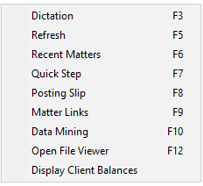
Recognising that for most people it’s difficult to remember all of these, an additional function was added to Case Manager some time ago to help. If you right-click in the white space at the bottom of the active Case screen, you will be provided with a list of the available F keys which can be used within Case Manager. These are also dynamic, so if you click on them, the function will be activated. The screenshot below illustrates and note the option to Display Client Balances: 

On a busy matter where the user has to scroll through several screens worth of transactions, it is sometimes a little challenging to find the white space at the bottom on which to click, but persevere and it’ll be worth it……or perhaps just print the list off and stick it on the side of your monitor! 

Whilst in Case Manager, there are several other shortcuts available which are worth highlighting as follows: 

  • Alt S to Insert a Step. Inserting a new document or action into the Case file. 
  • Alt F to insert a Freestyle Step. Inserting a non-document, non-standard item. Typically used for adding a note and or an ad hoc reminder. 
  • Alt T to take a Step. Process the highlighted action or document. 
  • Alt C to Complete a Step. Complete the highlighted action or document. The difference between Take and Complete can sometimes be confusing to users and in fact, where a step doesn’t have a follow-up action, they are in effect the same thing. However, if taking the step invokes a secondary action such as a reminder, then completing the step will mark the reminder action as having been completed and, in workflows, the next action in the process will be triggered. 

So there you go. Hopefully, there’s something in here that you didn’t know about, but would be really useful for you and your colleagues. I certainly don’t profess to know everything about P4W, so if any of you know of any other useful shortcuts available that aren’t covered above, please do share in the comments. After all, we’re here to collaborate and learn from each other so we can all get the best out of P4W.

More of a video/demo person? Watch the What The F?! A Guide To The F Key Shortcuts in P4W video below!

Case Studies
7 min read

UK law firm Maurice Turnor Gardner keeps documents safe with NetDocuments

Overview

About Maurice Turnor Gardner

Maurice Turnor Gardner is a boutique private client law firm of 45 top-tier lawyers based in London. The firm has been offering its services since 1 May 2009 following the demerger of Allen & Overy LLP’s highly-rated Private Client Department.

With a global client base of ultra-high-net-worth families, the firm seeks to understand all the legal, commercial and tax issues affecting its clients to provide them with principled and practical legal solutions, working in partnership with them as their trusted advisers. It also covers tax disputes, particularly investigations and follow on litigation with the HMRC.

Real Estate, Philanthropy and Charities and Immigration practices complement the firm’s traditional strengths in tax and estate planning and disputes relating to wealth.

A Future-Proof Platform to Improve Day-to-Day Legal Processes

Documents are at the heart of how Maurice Turnor Gardner operates. Therefore, enabling its lawyers to easily and securely access and share important files is business critical.

Like many organisations, Maurice Turnor Gardner had to quickly transition to remote working due to the pandemic. When it came to document management, the firm was using its existing practice management system (P4W) to store and manage documents. However, this made searching for and collaborating on documents difficult, especially for users who spend their working day inside of Outlook, as it took time to switch between the different applications.

In addition, the only way the firm’s lawyers could access documents remotely was via a virtual desktop. While this provided security, it also required a reliable internet connection, which wasn’t always possible on home WiFi. If a lawyer’s connection dropped, it meant they would then need to reauthenticate each time, impacting the user experience. Maurice Turnor Gardner therefore wanted to move to a true cloud platform that would provide both the security that its high-net-worth clients demand and the flexibility to support its lawyers’ remote working needs.

“We required a solution that would enable our lawyers to work from anywhere with minimal disruption,” said Richard Price, Finance and IT Manager at Maurice Turnor Gardner. “At the same time, our new DMS needed to seamlessly integrate with our existing practice management solution, which underpins our business. By moving our document management to the cloud, we would be able to benefit from enhanced levels of flexibility and security.”

Richard Price, Finance and IT Manager at Maurice Turnor Gardner

Strong APIs Make for a Quick and Seamless Implementation

NetDocuments stood out as the DMS of choice as it is built on the cloud, intuitive and enables lawyers to work seamlessly and securely within their day-to-day applications.

“From attending a number of industry events over the years, NetDocuments has always been on my radar. So, when it came to choosing a DMS, NetDocuments was top of the list as it was a true cloud platform with strong APIs,” continued Price.

NetDocuments’ implementation partner, Accesspoint Legal Services, was able to quickly build an integration with the firm’s practice management system using NetDocuments’ APIs, which meant Maurice Turnor Gardner was able to go live in only three months.

In addition, onboarding sessions were delivered to ensure all users were up and running successfully and could realise the benefits almost immediately.

“As with any IT rollout, it was crucial to ensure our lawyers were fully on board with the new systems,” said Price. “Implementing NetDocuments was the most well-received product change we have ever done. Our lawyers could immediately see how it could improve their ways of working, which was key to user adoption.”

Integrated Applications Improve Productivity

Tools like the intelligent filing function of the NetDocuments platform have enabled Maurice Turnor Gardner’s 65 users to work more efficiently, saving them time searching for and filing documents. As a result, they have been able to spend more time on higher-value work.

“NetDocuments has made the lives of our lawyers a lot easier, which means they can focus on delivering the very best client service,” added Price. “We now have a future-proof DMS which will power our business for years to come, with added peace of mind that our documents are protected with the highest level of security in the cloud.”

By utilising the integration between the firm’s practice management tool and NetDocuments, Maurice Turnor Gardner’s lawyers have been able to work in P4W, Outlook, Word and NetDocuments with one central repository for information. This has improved productivity and ensured compliance, and now there is only a single source of truth in the NetDocuments cloud. With NetDocuments CollabSpaces, Maurice Turnor Gardner is now also able to share and collaborate with clients on documents stored on NetDocuments, providing the firm with an added layer of security.

With all of its documents residing in the cloud, Maurice Turnor Gardner now has complete confidence that its lawyers can quickly and securely access the files they need from wherever they are working. In addition, the significant number of integrations NetDocuments supports means the firm can future proof its legal software stack by adopting a best-of-breed approach.  For the firm, this can only further enhance productivity and client service.

“Accesspoint’s expertise in both NetDocuments and P4W enabled us to successfully implement a document management solution that was seamlessly integrated and joined up with the core PMS and Back End processes. This ensured that the firm’s staff were fully onboard from day one.”

Hong Tran, Sales Director at Accesspoint
Higgsy's Handy Hints
6 min read

An INTERESTing Opportunity!

Overview

A trip back in time…

If you’ve been around long enough, things from the past have a habit of making a comeback. Whether it’s flared trousers, space hoppers, or Britney Spears they’ve all had their turn back in the limelight.

Back in the early 90s, one of the key selling points of the Solomon II Practice Management software which I was selling to law firms was its ability to calculate deposit interest due on client money being held. Back then, it wasn’t unusual to visit firms who had hundreds of deposit accounts set up at the bank on behalf of their clients.

Not only were these a burden to administer, but the firms were also missing out on significant sums of interest to which they were entitled.

How could you use your Practice Management Software to earn more interest for your firm?

By pooling the client money together at the bank, firms could achieve a higher rate of return for the combined pot but were only liable to pay the client the interest that they would have earned had their money been held in a separate, designated deposit account. What’s more, under the Solicitors Accounts Rules, interest was only payable to the client if the individual amount held fulfilled the specific value and time held thresholds stipulated, so that, in many cases, no interest was payable to the client, yet their money earned interest for the firm in the pooled client account.

Think about it. Even in the 90s, it wasn’t unusual for firms to be holding several million pounds worth of client money. If they only managed to attract an additional 1% on the combined monies and held £1m in client account, then they would earn an additional £10,000 per annum. This alone was often more than enough to cover the investment in their new PMS.

Where will interest rates be in 2023?

Since the 2008 financial crisis, interest rates have remained at historic lows, so the benefits of this practice have been eroded to almost nothing. As such, managing client money in this way to generate additional interest has largely been abandoned.

However, following recent events, we are now back in an era where interest rates are rising fast; with predictions that they’ll hit 6% next year. In place of the thresholds, the Accounts Rules were updated along the way to stipulate simply that the client should be paid “a fair amount of interest”; although it’s still the case that no interest needs to be paid to the client if the amount earned is under £20.

This presents law firms with a great opportunity to once again generate income from the management of client money. At a time when the costs of running the firm are only going in one direction, this will come as a welcome boost to the bottom line of legal businesses.

How can you reap the benefits of this opportunity?

Without an automated system to manage this process, firms will struggle to implement and benefit from this opportunity. The administrative burden posed in ensuring that the firm keeps up to date records of monies held on behalf of clients whilst making sure that interest is paid when due will be significant and, for some, too much to consider despite the obvious financial benefits to the business.

Know how to use the tool in P4W

The good news is that P4W has always had a Deposit Interest Calculator; enabling firms to do exactly this. Given that it’s nearly 14 years since this opportunity was effectively taken away, there will be firms who have little, if any, knowledge of how to use the tool in P4W. In fact, Accesspoint were recently contacted by a large firm using P4W to ask how they could better manage their large number of client deposit accounts now that interest rates were rising. Once they realised that P4W has this ability built in, they were delighted that the functionality was already there having been braced for some bespoke development.

So, if your firm uses P4W and could potentially benefit from using the Deposit Interest Calculator, then don’t wait a minute longer to capitalise on this “interesting” opportunity.

As for those flares, they can stay in the back of the wardrobe, but I may just nip out for a bounce on my space hopper whilst listening to Oops!…I did it again!

Richard Higgs
Non-Executive Director
Accesspoint Group Holdings

Disclaimer: Information provided above is for general guidance purposes only and should not be misconstrued as specific advice as to how client money should be handled. Each firm should always seek professional guidance before adopting any changes to current procedures.

If you would like to contact us regarding anything discussed in this article, you can email Richard or contact the team using the form below.

Testimonials

Don't just take our word for it...

Working with Nesar has been a positive experience for our website. His technical expertise, proactive approach and attention to detail ensure that our site runs smoothly at all times. He is always quick to resolve issues, implement improvements, and offer practical solutions that enhance user experience. Nesar is a pleasure to work with, and I am impressed with his communication and client service skills.

Hayley Leslie, TV Edwards

Working with Accesspoint’s website team was reassuring and easy. They kept us updated with everything that was going on from start to finish. We’re very happy with the new website. It’s clean, refreshing, and provides a great user experience with its fast speed and easy navigation.

William Rowley, HSR Law Solicitors

We’ve been really impressed with Accesspoint and Rich’s SEO support. Rich is extremely proactive in suggesting and carrying out work that genuinely helps improve our rankings, and he’s always there whenever we need advice or support. We’ve already seen great results from the work they’ve done, and it’s reassuring to know our SEO is in such capable hands. Highly recommended.

Molly Thornton, Thornton Jones Solicitors

I’ve really enjoyed working with Rich and have seen first-hand the positive impact he has had on our website. His in-depth knowledge of SEO is inspiring, and I’ve learned so much from him through our email exchanges alone! Anyone who works with Rich will gain valuable knowledge that they can then carry forward. Thank you Rich for all your hard work and support.

Paaris Kazmi, GT Stewart Solicitors

Working with Accesspoint has been an absolute pleasure. Their passion for what they do and supporting their clients is clear in every interaction. Scott, Olivia, Rich, and others are consistently approachable, and willing to go the extra mile. Our project with them was complex and highly bespoke, yet they rose to the challenge effortlessly. Thanks to them, our website and brand has seen a significant increase in visibility, engagement, and traction.

Brett Shaw, Chronicle Law

Rich has been absolutely fantastic in helping us improve our SEO efforts. He has always been proactive in optimising our pages and ensuring they perform the way we need them to. He has been great at offering valuable guidance on how to strengthen our rankings and his monthly reports have been elaborate and really useful. I’ve very rarely had to reach out to Rich. He has always actively suggested improvements and identified opportunities to ensure we stay on track.

Paaris Kazmi, GT Stewart Solicitors

The warmth and generosity of the Accesspoint team is amazing – you are a lovely bunch of people and a real pleasure to work with.

Rebecca Faulkner, Enoch Evans

Our website looks really fantastic! Well done to all of you!

We are so happy with all the social media on Goodman Ray! It’s so exciting every time I see something on there. Olivia and Emma are doing a great job and make everything so easy!

Louise Payne, Practice Manager at Goodman Ray Solicitors

I love working with Accesspoint because they are always available to help with any query big or small and have the expertise to ensure the issue is sorted.

Clifton Ingram Solicitors

What we love most about Accesspoint are the people.

Tracey Thorpe, Hunt & Coombs

Accesspoint have been so incredibly supportive in achieving desired objectives – including creation of platforms, website design and lead generation. Big thanks in particular to Olivia Fishwick and Scott Brown who continue to help make a difference for the business.

Thushara Polpitiye, Founder and Managing Director of Astute Law

Book a demo

This field is for validation purposes and should be left unchanged.